
Copy the OBS alert link, then fire a test alert.
Creator Home
Ready to stream?
Tink Bot
Welcome back
See if your stream is ready, test an alert, copy your OBS link, and jump back into the tools you use most.
Streamer
Alerts ready
Multi-platform
Connecting...
Checking stream readiness...
Tink Bot is checking alerts, OBS setup, and your go-live checklist.
View stream checks Overlay, Discord, storage, and latest event details
Overlay is waiting for OBS. Keep the link handy, then fire a test alert.
Discord welcome and verification can be added after first setup.
Connect Twitch, YouTube, Kick, Rumble, or Custom when ready.
Free: Start streaming fast.
Preset sounds and packs are ready.
Your first alert will appear here once your community starts interacting.
Waiting for your next stream moment.
Setup checks
Before you go live
Checking connections, overlay links, and permissions without changing setup.
Connect Twitch if you want Twitch chat and alert events.
Connect YouTube if you want YouTube chat and alert events.
Discord is optional; add it when you want community tools.
Generate the overlay URL before testing alerts.
Prepare the OBS alert link before going live.
Review any connection that needs one more permission step.
Before you go live
Final check
Checking the basics so alerts can work before you go live.
Connect Twitch or YouTube before relying on live stream events.
Copy this link so OBS can show your alert.
Send one test alert before going live.
Guided setup
Stream-ready checklist
Finish these basics so alerts can show up before you go live.
Ready check
Stream Center
Keep the simple checklist nearby when you want a quick pre-stream check.
Connected
OBS Ready
Alerts Active
Step 1 of 3
Connect your stream
Choose where you stream so Tink Bot can catch live moments.
Choose one platform
Overlay preview
Your first alert will land here
Use this preview to see your alert before it reaches OBS.
Required
Connect one stream platform or skip
Connect Twitch or YouTube to catch live moments. You can skip and finish OBS first.
Required
Required for alerts
Add the alert overlay to OBS
Copy the alert link so OBS knows where to show your alert.
- Copy Overlay URL
- Open OBS
- Add Browser Source
- Paste Overlay URL
- Click Test Alert
- Confirm alert appears
Use your OBS canvas size for Width and Height. Most stream scenes use 1920 x 1080.
Needs Attention
Copy the overlay URL before opening OBS.
Warning
Click Test Alert after pasting the URL into OBS.
Ready
Required check
Send one test alert
Run one test so you know the alert appears before viewers arrive.
Required
Ready check
You're ready to stream
When the link and test are done, your basic alert setup is ready.
Waiting
Optional helpers
Add more when you are ready
Add chat, Discord, and deeper styling after your first alert works.
One stream connection lets Tink Bot catch live moments.
This link lets OBS show your alert on stream.
A test confirms your alert appears before stream time.
This is the alert look your viewers will see.
Add Discord later when you want community tools.
Simple View keeps setup readable. Full Control has every advanced tool when you need it.
First setup
New here?
Quick Start gets your first alert ready for OBS.
Support and feedback
Need help?
Report Bug / Feedback stays available in the sidebar. Open this only when you want the support note.
Collapsed
Support and feedback
Need help?
Report Bug / Feedback stays available in the sidebar. Open this only when you want the support note.
Tink Bot naturally logs backend errors and setup health so we can keep the bot stable. If something looks off, use Report Bug / Feedback too; your note gives us the context needed to fix it faster for you.
Quick Start
Get stream-ready
Use these steps to get alerts working before you go live.
Checking setup...
Tink Bot is checking what is already ready.
Setup Doctor
Can I go live?
Run this check to spot setup issues before viewers arrive.
Checking your stream setup...
Results show what needs attention before stream time.
Go Live Checklist
Pre-stream check
Use this before stream to confirm alerts, OBS, and live activity.
Checking today’s stream readiness...
Loading
Loading checklist
Checking what is ready for today's stream.
Ready Check
Stream Health
Use this to confirm your stream tools are responding.
Checking what is ready for stream.
Recent checks help you spot repeat setup issues.
Test Center
Event Replay
Fire safe simulated events into the dashboard, overlays, chat feed, and moderation review flow.
Choose an event and fire it when you want to test the stream flow.
Clip Walkthrough
How clips go to Discord
Play the walkthrough to see the streamer setup, in-game clip marker, queued Discord send, and final #clips post.
Step 1
Connect Discord once
Discord setup: paste the #clips channel ID
The streamer saves their clips channel in Connections. No Render env access is needed for each creator.
Discord connected
Clips channel saved
Step 2
Tink Bot marks the moment
In game: big clutch, raid spike, or chat hype
When the automatic clip detector is connected, it can flag the moment in-game so the streamer knows this is clip-worthy.
Clip marker
Title + source
Step 3
The clip is queued
Queue Clip sends the clip details to Tink Bot
The backend formats the Discord message and queues it for the worker, so the dashboard does not have to store the video file.
No clip storage
Worker sends link
Step 4
Discord gets the post
#clips: Big clutch moment
https://clips.example.com/tinkbot-hype-moment
https://clips.example.com/tinkbot-hype-moment
The saved clips channel is used first. If one is missing, the post falls back to the default announcement channel.
#clips channel
Shareable link
Ready to queue a demo clip through the Discord clip route.
Giveaway Studio
Draw a giveaway winner
Add viewer names, randomize the list, then draw a winner with the standalone giveaway explosion moment.
Winner Reveal
Ready to explode
Add entries and test the reveal whenever you want to see how it lands.
Giveaway entries
Streamer-only controls
No winner revealed yet.
No entries yet. Add a few names to test the reveal.
Connections ready
--
Loading connections.
Last chat
None
Connect a platform to start live chat.
Last alert
None
Your first alert will appear here once your community starts interacting.
Boss HP
-- / --
Boss is waiting for the first hit.
Welcome back
Your stream is ready
Everything looks good. Fire a test alert, preview the overlay, or jump straight into Alert Studio.
Go Live readiness summary: your stream is ready.
Stream setup
Connections
Connect the places your stream lives. Detailed setup stays in Connections.
Loading
Manage Connections
Loading platform connections...
Connections
Stream connections
Pick a connection to manage where chat, alerts, and stream events come from. Technical details stay below if you need them.
Loading connections...
Connection privacy
Clear saved platform account info
Disconnects saved platform account tokens, channel IDs, profile details, and custom connector links for this workspace. Alert settings, overlays, sounds, and chat tools stay in place.
Ready
Technical details
| Connection | Status | Ready fields | Note | Manage |
|---|---|---|---|---|
| Loading platforms... | ||||
Danger Zone
Reset streamer data
This stays in the operator dashboard so it is protected from the normal streamer workflow.
Ready
Clears streamer account tokens, channel IDs, and saved profile details while keeping custom connector URLs and base adapter setup.
Ready
Full reset also clears platform connections, custom connector links, recent events, alerts, moderation review items, and queued action jobs.
Live chat
All connected chat in one place.
Twitch
YouTube
Kick
Discord
Facebook
Rumble
Blaze
Unified Chat is read-only for launch. Auto mod actions still run when Tink Bot catches something.
Connect a platform to start live chat.
Streamer alerts
Recent follows, subs, raids, tips, and test alerts from this workspace.
Your first alert will appear here once your community starts interacting.
Chat Tools
Create quick replies and shortcuts for your chat.
Idle
Chat Tools
Create quick replies and shortcuts for your chat.
Twitch, YouTube, Discord, and Kick use built-in chat senders first. Rumble, Facebook, Blaze, and custom connections can reply through the saved bot chat link.
Loading chat tools...
Action review
Approve or dismiss flagged chat before any warning or moderation action can be queued.
Idle
Action review
Approve or dismiss flagged chat before any warning or moderation action can be queued.
Open 0 / Approved 0 / Dismissed 0
Everything is holding steady so far. New flagged messages will appear here when Tink Bot catches something.
Chat safety
Chat Moderation Setup
Choose what Tink Bot catches before flagged messages reach chat overlays or the live activity feed.
Loading
Chat safety
Chat Moderation Setup
Choose what Tink Bot catches before flagged messages reach chat overlays or the live activity feed.
Loading chat moderation settings...
Flagged chat is held for review. Use Action Review here or the Mod Console during stream.
STREAM MODERATION
Live chat rules, filters, links, spam, confidence, and enforcement live here. Discord community setup stays in its own section.
Control broad readability checks like long messages, caps, and noisy chat patterns.
Manage blocked phrases, toxic phrases, and warning language for live chat.
Catch promo spam, repeated words, repeated letters, emoji floods, and symbol floods.
Decide how Tink Bot treats URLs and invite links before they reach stream surfaces.
Choose relaxed, balanced, or strict checks based on chat speed and community trust.
Review queue actions escalate from warnings to stronger platform actions when permissions allow.
The shared policy explains rule buckets and the enforcement ladder in Mod Console and Advanced.
Queued actions
Recent worker jobs created by announcements or approved moderation actions.
Idle
Queued actions
Recent worker jobs created by announcements or approved moderation actions.
Everything is holding steady so far. Approved actions will appear here when your mods need them.
Alert Studio
Alert Studio
Choose a preset, tune the vibe, test it live, then save the version your stream will use.
Selected preset pack
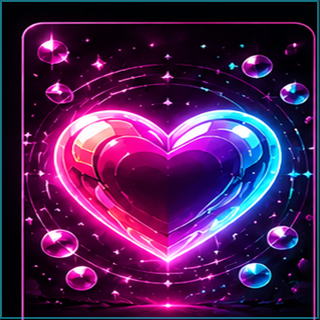
Tink Neon
Glossy neon heart alerts with pink, cyan, and bubbly sparkle energy.
Every preset pack is ready to use. Pick a vibe, preview it, then save it for stream.Look & Style Make it yours
Motion & Sound Fine tune the feel
Enhanced Effects Cinematic visual layer
Enhanced visuals available
Reactive neon flashes
A cinematic effect layer that makes big stream moments feel more immersive.
Free presets stay fully usable. Premium adds a cinematic creator layer on top.Media Uploads Founder custom media
Stream Setup Put it on stream
Put it on stream
- Copy OBS Link
- Add the link in OBS
- Paste the link
- Set size
- Test Alert
OBS Link
Open Preview
Standard / Transparent
Advanced Test-only controls and deeper details
Stream boss
Current boss state used by the alert overlay.
Loading boss state...
Engagement Studio
Stream moments
Set up Boss Battles, Polls, Trivia, and Raid Welcome moments as their own stream tools.
Boss Battles
Signature stream moment
Let chat team up to defeat a stream boss.
Follows, subs, tips, or chat shortcuts can add damage later.
Use this for bigger stream moments.
Polls
Chat decides
Ask a quick question and let viewers vote from chat.
Use numbered answers like !vote 1 or letter answers like !vote A.
Set the timer in seconds, then close the poll when the stream is ready.
Trivia
Question round
Ask a question, collect answers, and reveal the result.
Use 2-4 options and let chat answer with !answer A, !answer B, and so on.
Use this for between-match breaks and community games.
Raid Welcome Party
Welcome raiders
A full-screen celebration with confetti, emotes, shake, and giant welcome text.
No timer, questions, or answers. Trigger it with !raid.
Add a welcome clip when you want raiders to meet you fast.
Boss Battle
Balanced
Chat Boss Battle
Let chat team up to defeat a stream boss.
Ready
Open
0% complete
0 / 100
!attack !hype
This foundation saves locally. Chat-command integration can update the same activity later.
Boss Events

Boss Event idle
Ready
Pick a boss and start it when your stream is ready.
Boss Events are separate from alert packs and the standard boss bar.
Recent Activity
Stream timeline
A quick pulse of alerts, announcements, overlay changes, and mod support.
Overlay preview updated
Alert Studio is ready for a test.
Test alert triggered
Use Test Alert to wake up the preview.
Discord announcement ready
Send a post when your stream goes live.
OBS overlay links
Copy these links into OBS so chat and alerts can appear on stream.
Use safe mode when you want a lighter OBS setup.
Advanced event details
Raw activity details for troubleshooting.
Idle
Advanced event details
Raw activity details for troubleshooting.
Live events will appear after a connected source sends activity.